
Installing ImageJ/FIJI#
Download FIJI#
FIJI has pre-installed plugins and is recommended for this lab. Download it at https://imagej.net/software/fiji/downloads. Look for the zip folder and extract the contents to the desired location on your computer. Keeping it in “Program Files” is generally not recommended to avoid access/security issues.
Installation#
We’re going to run the new Jaunch launcher, because it runs faster and allows running without security popups. If it doesn’t show up within two minutes of running, then run the backup launcher.
Windows#
Right-click on
fiji-win64.zipand choose Extract All… toDownloads\(avoid placing it inProgram Files).Open the
Fiji64.appfolder.New launcher: Run

Fiji-windows-x64.exein that folder.Running for the first time may take about 60 seconds.
Backup launcher: Run
ImageJ-win64.exein that folder.
Linux#
Unzip
fiji-linux64.zip:unzip fiji-linux64.zip cd Fiji.app/
New launcher:
./fiji-linux-x64
Backup launcher:
./ImageJ-linux64
macOS#
Double-click
fiji-macos.zipto extract.(Optional: copy
Fiji.appto Desktop.)Right-click on
Fiji.app, choose Show Package Contents.You will see a folder containing another
Fijiicon inside it.
Double-click the secondFijiicon to launch.If it doesn’t work, see backup instructions below.
Backup Instructions for macOS#
Double-click
fiji-macos.zipto extract.(Optional: copy
Fiji.appto Desktop.)Try opening
Fiji.app. This will likely be rejected by macOS for security reasons.Open Apple Menu > System Settings.
Search for Gatekeeper.
You should see the text
“Fiji.app was blocked…” - click Open Anyway.Enter your password or use your fingerprint if prompted.
Click Open.
After this, you should be able to openFiji.appdirectly.
A Side Note on Updating#
When using FIJI, it is recommended to use Help > Update rather than Help > Update ImageJ.
Update ImageJ will specifically update only the base ImageJ package within FIJI, not the associated plugins.
This makes it more likely that you will run into version issues and other update problems.
Generally, updating when prompted upon opening FIJI will also help prevent issues.
Install Plugins with Update Sites#
After running Help > Update, there will be an option to Manage Update Sites.
This provides access to common plugins that are compatible with FIJI. Use the checkbox to add a plugin, then click Apply and Close.
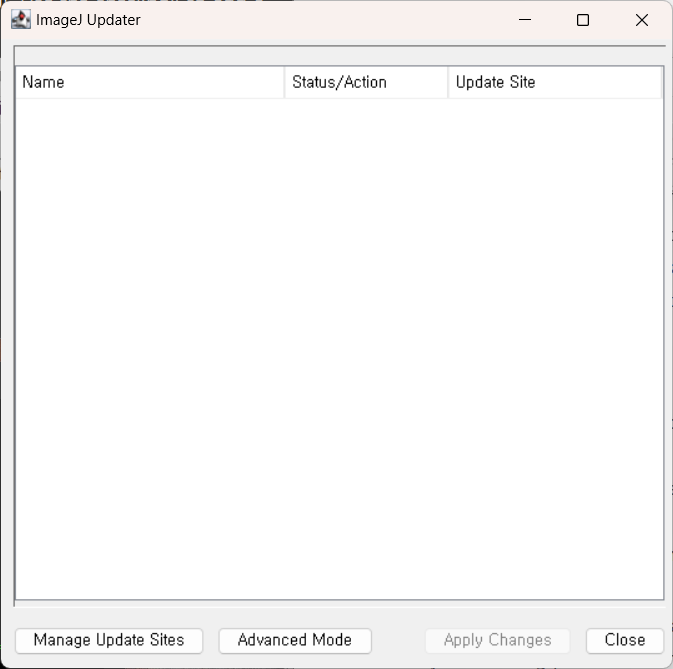
Click Apply Changes, then restart FIJI.
You should now be able to search for and run the plugin.
Downloading a Practice Dataset#
The complete list of files may be downloaded at the following links:
Google Drive: https://drive.google.com/drive/folders/1lgn-S5fZZZX0mwou23S_f6d3dG2Di64g?usp=drive_link
This manual: https://brp-optics.github.io/fiji_lab_walkthrough/installation.html
I also have a USB drive with all the resources on it, should anyone not have internet access.
Some usability options#
I like to go into the menus and set the main FIJI window to be always on top, and the search tool to be Ctrl-L rather than L:
Main window always on top: Edit > Options > Appearance > IJ window always on top
Note that one can “surface” the main FIJI window from any Fiji window by pressing Enter
Change search tool: Edit > Options > Search bar … > Pressing L focuses the search bar